Sunday, March 9, 2014

Zaycon Foods Chicken Event

We recently purchased 40 pounds of fresh boneless skinless chicken breasts from Zaycon Foods. We were able to purchase the chicken for $1.89/lb. The lowest price I typically see boneless skinless chicken breasts at Meijer is $1.85/lb, so this was a stock up price for us.

(I'm not going to go into a lot of detail about Zaycon Foods, but you can visit their website here for more information on the company and how it works.)

Here is step-by-step how this worked for us:

1) I went to the Zaycon Foods website and created an account. Based on my city, I chose an event I wanted to participate in, in this case, the chicken event. I chose how many cases of chicken I wanted (the chicken was sold in 40 pound cases). I paid for the chicken online.

2) A few months later, the Zaycon Foods truck came to our city and I drove to it to pick up the chicken. I gave the driver my name, he checked me off his list, and loaded the case of chicken into my truck (on top of a plastic bag, in case the juices leaked!) Here is our case of chicken:

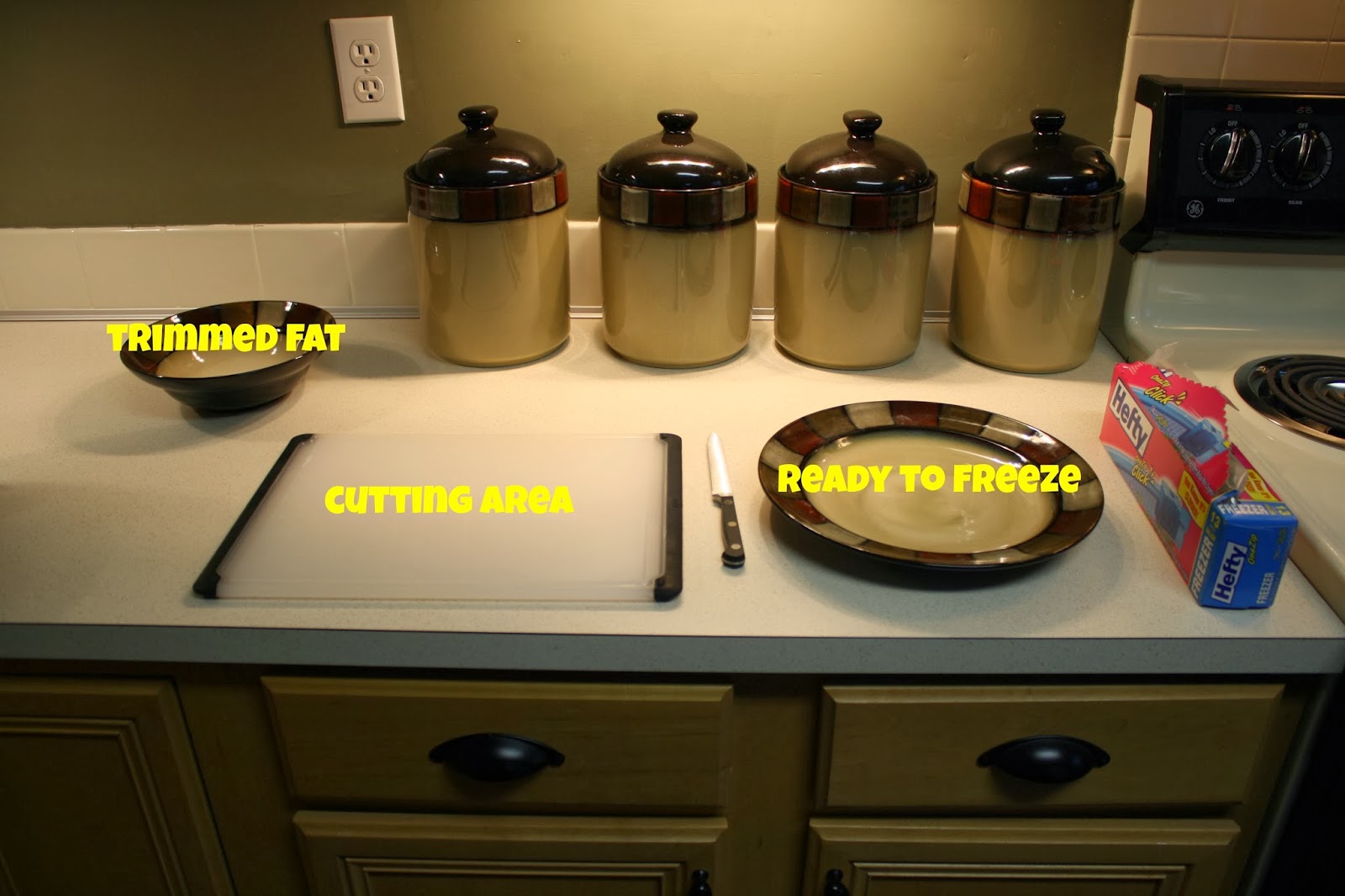
3) When I got home, I began to prep to freeze the chicken. The chicken came in 4 bags inside the box. If I froze it like that, I would end up with a big block of chicken frozen together. I needed to separate them into freezer ziploc bags. Here is my set up for freezer prep:
4) I separated the butterflied chicken breasts and trimmed the fat:

5) Once the chicken breasts were prepped to my liking, I put them into gallon Ziploc freezer bags. I chose to put 4 in each bag because I don't typically ever need more than 4 for a single meal. I ended up with 9 bags of full chicken breasts, plus 1 bag of smaller pieces that I trimmed off.

I chose to freeze all 40 pounds of our chicken, however I have heard people that freeze some, cook some right away, or prep it for other meals, like shredding.

I would definitely do this again! Let me know if you have any questions about Zaycon Foods or our experience.

Monday, January 20, 2014

What's Cooking: Braided Pizza Bread


We are a pizza-loving household and this meal did not disappoint! This recipe does use a bread machine. The braiding part is a little tricky without seeing it, so enjoy my illustrations! :)

Ingredients:
- 1 1/2 cups water
-  3 Tablespoons canola oil
- 4 cups flour
- 3/4 teaspoon salt
- 2 teaspoons active dry yeast
- pizza ingredients/toppings (we used  for ours)

Cooking Directions:
1. Add all ingredients to bread machine and set to the "dough" setting. I have a Betty Crocker Bake-It-Easy Bread Maker and the dough setting takes an hour and a half, so plan ahead.
2. After it is done, take the dough out and divide it in two. Flour the surface you are working on (the dough is rather sticky). Roll each half into a rectangle, keeping it about 1/2 inch thick.
3. Add your pizza toppings in the middle of the dough. We used pepperoni, sauce, and mozzarella cheese.
 
4. Create 1 inch wide strips on the top and bottom of the rectangle around the toppings.

5. Braid the dough. Start at one end and lay the end strip diagonally over the toppings. Then take the opposite one and lay it diagonally. Keep going until all the strips are layered. When you get to the end, just tuck the dough strips underneath.
6. Place the loaves on a baking sheet. Bake at 400°F for 15-20 minutes, until golden brown. Allow the loaves to cool a little bit before cutting into slices.

We plan to try this recipe again but with ham and cheese instead of pizza toppings.

Source: www.bargainstobounty.com

Thursday, November 7, 2013

Money Saving Apps: GasBuddy

I really hate it when I get gas and then drive a mile down the road past another gas station and see the price is 10 cents cheaper! I realize that if I got 10 gallons of gas, I only would have saved $1.00, but over time it adds up. By using the GasBuddy app, we can find the cheapest gas prices in town!

Steps to Use GasBuddy:
1. Download the app to your device. It is available for Apple, Google, Windows, and Blackberry phones. The app may ask you to create an account, but you do not need one to use the app.
2. In the app, you can either search for gas stations by city, state, or ZIP, or have the app use your location to find the stations closest to you using GPS.

3. Once it has the closest gas stations pulled up, you can sort them by distance or price, or even fuel grade. You can also view the gas stations on a map.

4. Select a gas station and view more information such as the address, phone number, and features (such as if they have restrooms, a convenience store, or an air hose). You can also get directions to the gas station through your phone.


Why I Love this App:
- Even if you are in an unfamiliar city, you can find the cheapest gas stations.
- I like being able to search on the map to see where along my route is the cheapest gas, even if it is over 100 miles away.
- If you have notifications set up, you get an alert notifying you that prices are going up in your area.

Tuesday, November 5, 2013

Money Saving Apps: Amazon Price Check

I give the Amazon Price Check App a good workout in the weeks before Christmas. It allows me to compare prices I find in the store with prices on Amazon.


Steps to Use Amazon Price Check:
1. Download the app to your device. It is available for iPhone, iPod touch, and Android.
2. Either type the name, scan the barcode, take a picture, or say the name of the product you want to find.


3. Compare prices on Amazon with the price in the store.

Why I Love this App:
- Helpful during holiday season to make sure I am getting the best price on gifts.
- You can share information on a product via e-mail, text, Facebook, or Twitter.
- You can connect the app to your Amazon account and add items to your cart.
- If you have an account, you can buy items right from the app.
- I have seen people use this app at garage sales...usually to see if they can resell the item for more.

Sunday, November 3, 2013

Money Saving Apps: Target Cartwheel

I already love Target enough as it is, but they recently launched an app through Facebook that made me love it even more! It is called Target Cartwheel.

Steps to Use Target Cartwheel:
1. You will need a Facebook account to use Target Cartwheel. If you don't already have one...get one, even if you only use it for Target Cartwheel.
2. Go to the Target Cartwheel website and log in through your Facebook account. A box will pop up telling you that "Cartwheel by Target would like to post to Facebook for you." Unless you want your Facebook filling up with offers you select, I suggest you choose "Skip." (You could also change it so only you see your posts from Target Cartwheel by selecting "Only Me")
3. Find coupons you want to add by searching or browsing. Click on the offer you want (called an offer card) and it will flip over. Select add. A little red check mark will appear in the upper right corner.
4. You can add 10 offers at a time, but you can earn more spots by unlocking badges. Badges to unlock include using Cartwheel for the first time at Target and saving $10 with Cartwheel and more.
5. At checkout, have the cashier scan your Cartwheel bar code. Either show them your mobile device with the bar code from the Target Cartwheel app (available through the Apple Store or Google Play), or print your Target Cartwheel offers from home and your bar code will be at the top of the print out. Your bar code never changes, so in theory, you could print out your bar code one time and reuse it...almost like a store loyalty card.

Why I Love this App:
- You can redeem all the offers you have loaded at the time of your transaction. So if you have 10 offers loaded, you will save on all 10 items that correspond with those offers.
- You can use each offer up to 4 items in a single transaction.
- Offers do not disappear until they expire...meaning you can use them over and over.
- You can use Target Cartwheel 6 times per day.
- You can use a manufacturer coupon, a Target coupon (mobile texts or printable), and one Cartwheel offer on a single item.
- You can also still use your Target REDcard on top of all those other coupons.

If I am roaming through Target (which I usually do), and I find something that I wasn't planning on buying before I saw it in the store, I will hop on the Target Cartwheel mobile app and see if there is a corresponding offer available. It can really maximize your savings!

Thursday, October 31, 2013

Money Saving Apps: Ibotta

There are a few apps that I use that help me save additional money on top of my coupons that I want to share with you over the coming weeks. The first one is called Ibotta. It is a free rewards app where you can earn cash back for purchasing certain products...kind of like a rebate.

Steps to Use Ibotta:
1. Create an account here.
2. Download the app to your device. It is available for Apple and Android products...even iPod touch and iPad (if you don't have a smartphone).

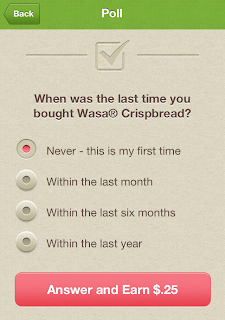
3. Choose an offer (product) and complete tasks to unlock earnings. Tasks include taking a poll, answering trivia, sharing the offer on Facebook or Twitter (you can always delete the post later), learning a fact, and watching a video to name a few. Each task is worth a different amount of money.
4. Go buy the product (use coupons for even more savings!).
5. Come home, open the app, select "Redeem" and select the store you shopped at (the list pictured is not all of the stores where you can use Ibotta).
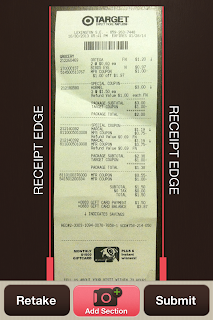
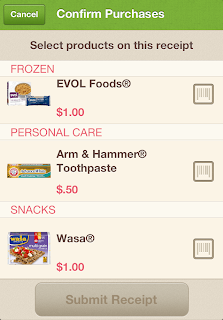
6. Take a picture of your receipt and select Submit (if you have a long receipt, choose "add section"). Select the product you purchased. Scan the UPC barcode and select Submit Receipt!

7. Within 24 hours, your account will be credited. In my experience, my account is usually credited within 15 minutes.
8. After you have accumulated at least $5, you can withdraw cash using PayPal. Or you can donate your earnings.

Why I Love this App:
- I have been using this app for a few months and I have earned over $50.
- You can use manufacturer and store coupons in addition to the Ibotta offers.
- There have been offers for basic items like 1 gallon of any brand of milk. Everybody buys milk!
- There are bonuses available. For example, after you sign up, if you redeem 10 offers in two weeks, you earn a $10 Welcome Bonus! Also, sometimes if you complete a bonus, it unlocks another bonus.
- In addition to the regular offers, there are Store Extras...offers that can only be redeemed at the specified store. Currently, those stores are Smashburger, Whole Foods, Target, Sam's Club, Walmart, and Costco.

Currently Ibotta works at the following chains, but they are always working on adding more:
7-Eleven
Acme
Fresh Market
Bi-Lo
Boyer's
Buehler's
City Market
Costco
Country Mart
CVS Pharmacy
Dillons
Dollar General
Dominick's
Duane Reade
Family Dollar
Food Lion
Food4Less
Fred Meyer
Fry's
Giant Eagle
H-E-B
Harris Teeter
Homeland
Hy-Vee
Ingles
King Soopers
Kroger
Martin's
Meijer
Military Commissary
Pathmark
Pavilions
Pick 'N Save
Piggly Wiggly Midwest
Publix
QFC
Ralphs
Randalls
Reasor's
Redner's Markets
Remke's
Ridley's
Rio Ranch
Rite Aid
Safeway
Sam's Club
ShopRite
Smashburger
Smith's
Stop & Shop
Target
Tom Thumb
Vons
Walgreens
Walmart
Wegmans
Whole Foods
WinCo Foods
Winn-Dixie


Anybody else love this app?

Thursday, October 24, 2013

Just For Fun: Chain Store Maps

Check out these maps! These are the locations of some of the national grocery and drug store chains.

Albertson's
Aldi
CVS
Kroger
Meijer
Rite Aid
Target
Walgreens
Wal-Mart
Whole Foods
Where do you shop?